

The following is the current English version of the manual for LogicSim, available from Help -> Help inside the program. There's also a German version if you access the Help when the language is set to German.
LogicSim is a tool for design and simulation of digital circuits.
Simple uses include switches, logic gates (such as AND, OR, XOR, NOT) and LEDs. For more advanced circuits, modules can be created and reused to build up complexity.
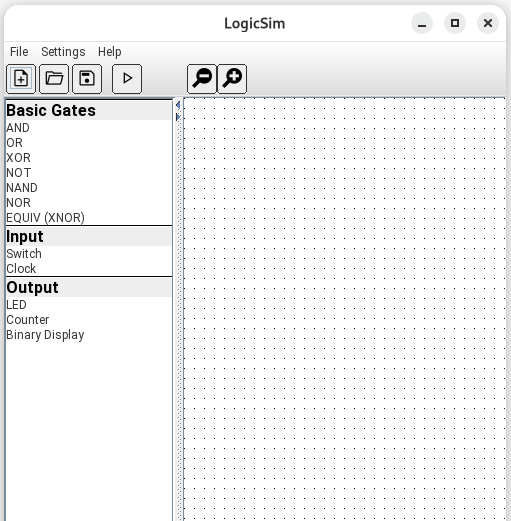
Simplified form
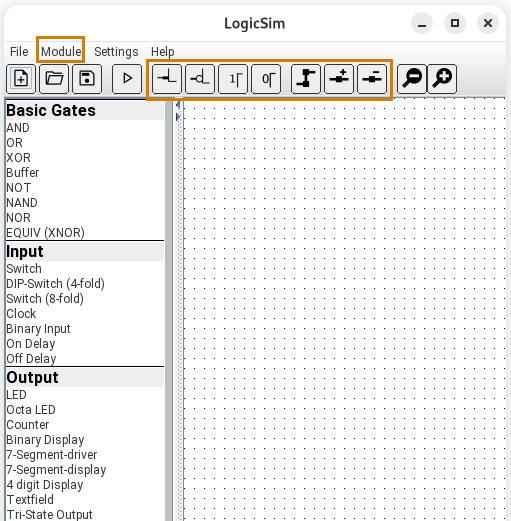
Advanced form
At the top of the window you'll find the menu bar and the toolbar. On the left side is a list of components which can be used in the current circuit, and on the right is the main canvas where you'll draw the circuit.
Two screenshots are shown here, the first has the complexity set to minimum (from the Settings menu), and so the number of components is reduced. Also, the "Module" menu is hidden, as are several of the toolbar buttons. This allows beginners to start with a simplified environment, and add the more complex elements later.
To change the language used by LogicSim, select one of the available languages from the Settings menu, and then restart LogicSim to use the selected language.
Select circuits from the list on the left side and drag them onto the main canvas.
To connect, click on an output of a circuit (right side) and draw the wire to an input of another component. Components and wires can be selected by clicking on them and then deleted with the DEL key.
You can change settings on some components by selecting "Properties" from their right-click context menus. Depending on the type of component, different properties might be available, for example switches can be set to be toggle switches (press for on, press again for off) or momentary (press and hold for on, release for off). LEDs can have their colour specified, and Clocks can have both their high time and low time specified in milliseconds.
It is possible to change the number of inputs for some components (such as AND, OR, XOR, etc) by adding or removing inputs using the right-click context menu. Such gates can have between 2 and 5 inputs. For gates such as AND and OR, the effect is as you would normally expect. For XOR gates, they act as parity checkers, so a four-input XOR gate will output "1" when an odd number of its inputs are "1".
Groups of components can be selected (in order to move or delete them) by drawing a rectangle around them with the right mouse button.
Simple logic gates like AND and OR can be displayed in one of two ways, selectable from the Settings menu under "Gate style". The two different styles are shown below.
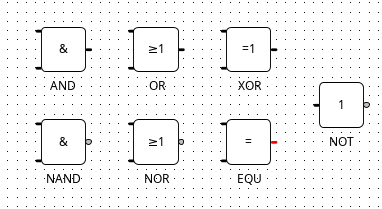
IEC style
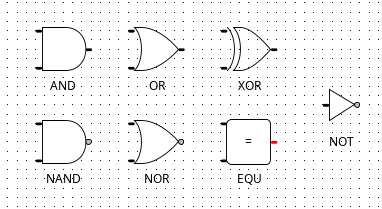
ANSI style
Wires can be connected individually by clicking on the pin of one component, optionally clicking on other points to define a path, and then finishing by clicking on the pin of another component.
If the setting "Autowiring" is activated in the Settings menu, there's a quicker way of connecting components, which is especially convenient when there are a larger number of pins to connect.
Simply drag one component over to meet the second component, and when the pins touch, they will be automatically connected by wires, as shown below.
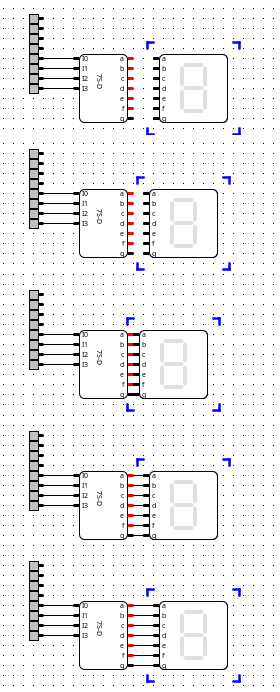
Autowiring two components |
Here, the seven segment driver on the left has 7 output pins, and the seven segment display on the right has 7 input pins. By carefully bringing the display over to touch the driver, the pins automatically get connected with wires and stay connected as the display is brought back away. This avoids the need to draw each wire individually. If the wrong pins are connected, you can disconnect all the wires by right-clicking on the display component and selecting "Disconnect" from the context menu. |
Once the circuit has been designed, you can switch to simulation mode by pressing the "Simulate" button on the toolbar (it's the fourth button from the left and looks like a "play" button).
Once in simulation mode, clicking the switches presses them (according to their switch type) and the pins and wires with a high logic level are highlighted in red.
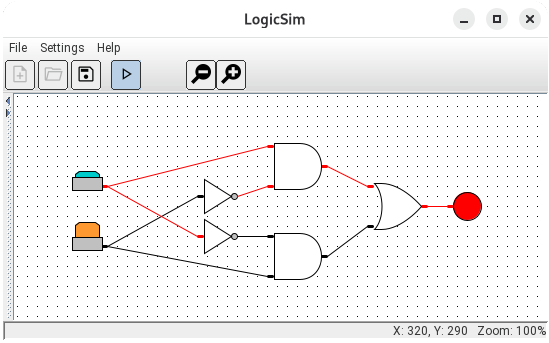
Simulation
This example shows one way to build a two-input XOR gate out of AND, NOT and OR gates. One of the buttons is pressed down, and so the LED lights up in its selected colour.
Circuits can be saved using the "Save" button on the toolbar or from the File menu. Normal circuits will be saved (as xml) with the file extension ".lsc" (for LogicSim Circuit). Modules have a similar format but are saved with the extension ".lsm" (for LogicSim Module).
To load a previously-saved circuit, just choose "Open" from the toolbar or File -> Open from the menu, and select the file to load.
To create a reusable module, use the menu item "Create module" from the "Module" menu. Note that this menu is hidden when the complexity in "Settings" is set to a low value.
With this, you get a clear canvas with a 16-input "Inputs" block and a 16-output "Outputs" block. Everything you design between the Inputs and the Outputs becomes the module which you can then save as a ".lsm" file.
You can attach switches and LEDs to the inputs and outputs in order to test the module before you save it.
To use this module, create a new Circuit and choose "Load module" from the "Module" menu. Select your saved file, and your module will appear in the components list on the left, using the label you gave as the "Label" parameter when you saved it.
Now you can drag this new component on to the canvas of your new circuit (or double-click the entry in the list) as you would any other component in this list.
Depending on how many of the inputs and outputs you connected inside your module, the block which appears on the canvas will have a varying number of input and output pins. Then you can wire up your module (or multiple instances of your module) together and simulate the result.